> For the complete documentation index, see [llms.txt](https://docs.membercounter.app/llms.txt). Markdown versions of documentation pages are available by appending `.md` to page URLs; this page is available as [Markdown](https://docs.membercounter.app/commands/invite.md).
# /invite
Provides an invite link to add the bot.
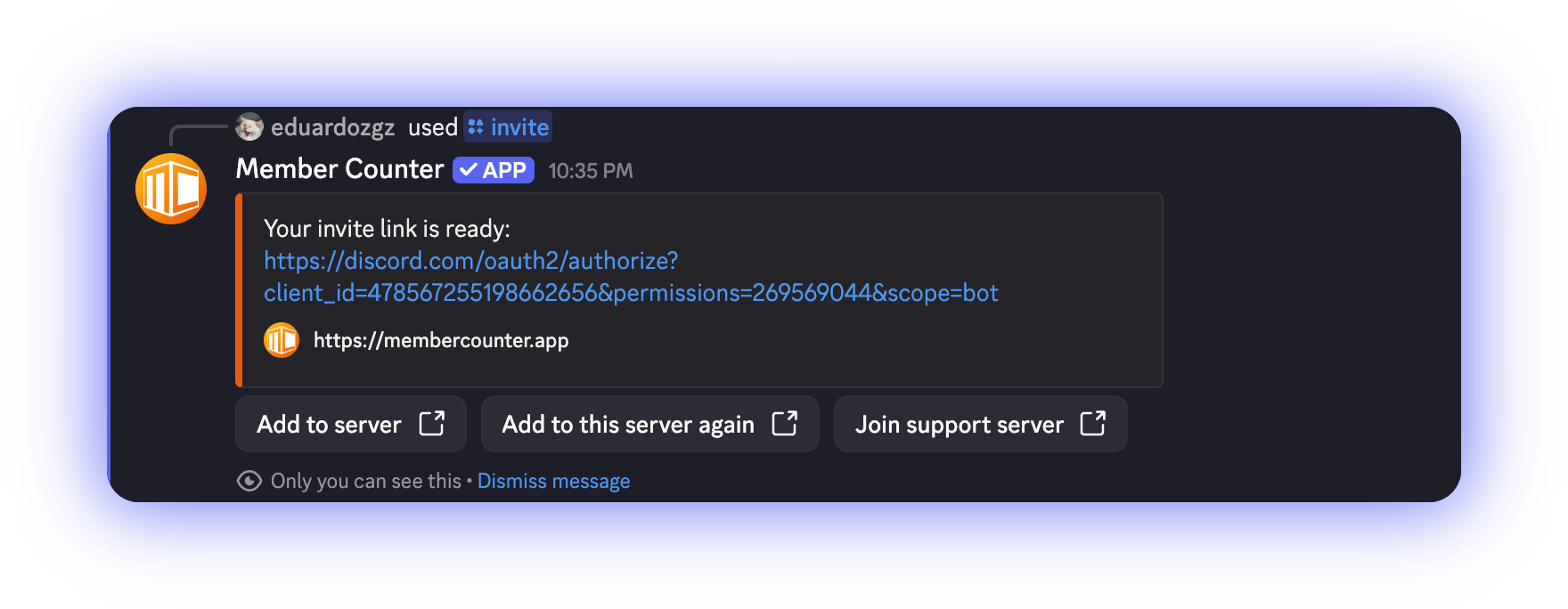
`/invite` gives you the link that adds Member Counter to a server, with the permissions it needs already selected.
```
/invite
```
**Who can run it:** anyone, in a server or in DMs. It has no options.
## What the reply contains
An embed with the invite link, and up to three buttons:
| Button | When it appears | Where it goes |
| ---------------------------- | --------------------------------------------------------- | -------------------------------------------------------------- |
| **Add to server** | Always | Discord's authorisation page, where you pick the server |
| **Add to this server again** | Only in a server, and only for members with Manage Server | The same page with the current server already selected |
| **Join support server** | Always | [membercounter.app/support](https://membercounter.app/support) |
Run inside a server by someone with Manage Server, so all three buttons show.
**Add to this server again** is for repairs: use it when the bot is already in the server but has lost permissions, or after someone edited its role. Re-authorising restores the permission set without removing the bot, and your counters stay as they are.
The link asks for the permissions the bot uses. [Adding the bot to the server](/getting-started/adding-bot-to-the-server.md) explains what each one is for.
## On a custom or self-hosted bot
On a [custom bot](/custom-bot/custom-bot.md) or a [self-hosted bot](/self-hosting/self-hosting.md), the embed link and **Add to server** still invite the public bot. **Add to this server again** is the only button that invites the bot that replied.
[`/info`](/commands/info.md) always links the bot that replied. When self-hosting you can also make `/invite` advertise your own bot, see [Configuration](/self-hosting/configuration.md).
Technical details
* The embed text comes from the locale string `interaction.commands.invite.description`.
* The embed link and **Add to server** are generated from `env.MAIN_DISCORD_CLIENT_ID`, which is required. `.env.example` ships the public bot's id, `478567255198662656`, so an unedited self-hosted bot advertises the public bot; set it to your own application id and both advertise your bot. **Add to this server again** is generated from `env.DISCORD_CLIENT_ID`, the running instance, with `guild_id=` appended so Discord preselects it.
* Every link uses `scope=bot` and `permissions=269569044`: View Channel, Manage Channels, Connect, Send Messages, Read Message History, Embed Links, Manage Roles, Ban Members.
* `ManageGuild` for the second button is checked on the invoker, not on the bot.
* **Join support server** links to `env.VITE_SUPPORT_URL`, the same variable that feeds the support button on error embeds.