> For the complete documentation index, see [llms.txt](https://docs.membercounter.app/llms.txt). Markdown versions of documentation pages are available by appending `.md` to page URLs; this page is available as [Markdown](https://docs.membercounter.app/custom-bot/changing-bots-status.md).
# Changing the bot's status
Set the presence, activity and token of your custom bot from the Bot configuration card.
Your custom bot runs under your own name and avatar. Set what its presence says in the **Bot configuration** card on your bot's page in the [dashboard](https://membercounter.app/dashboard).
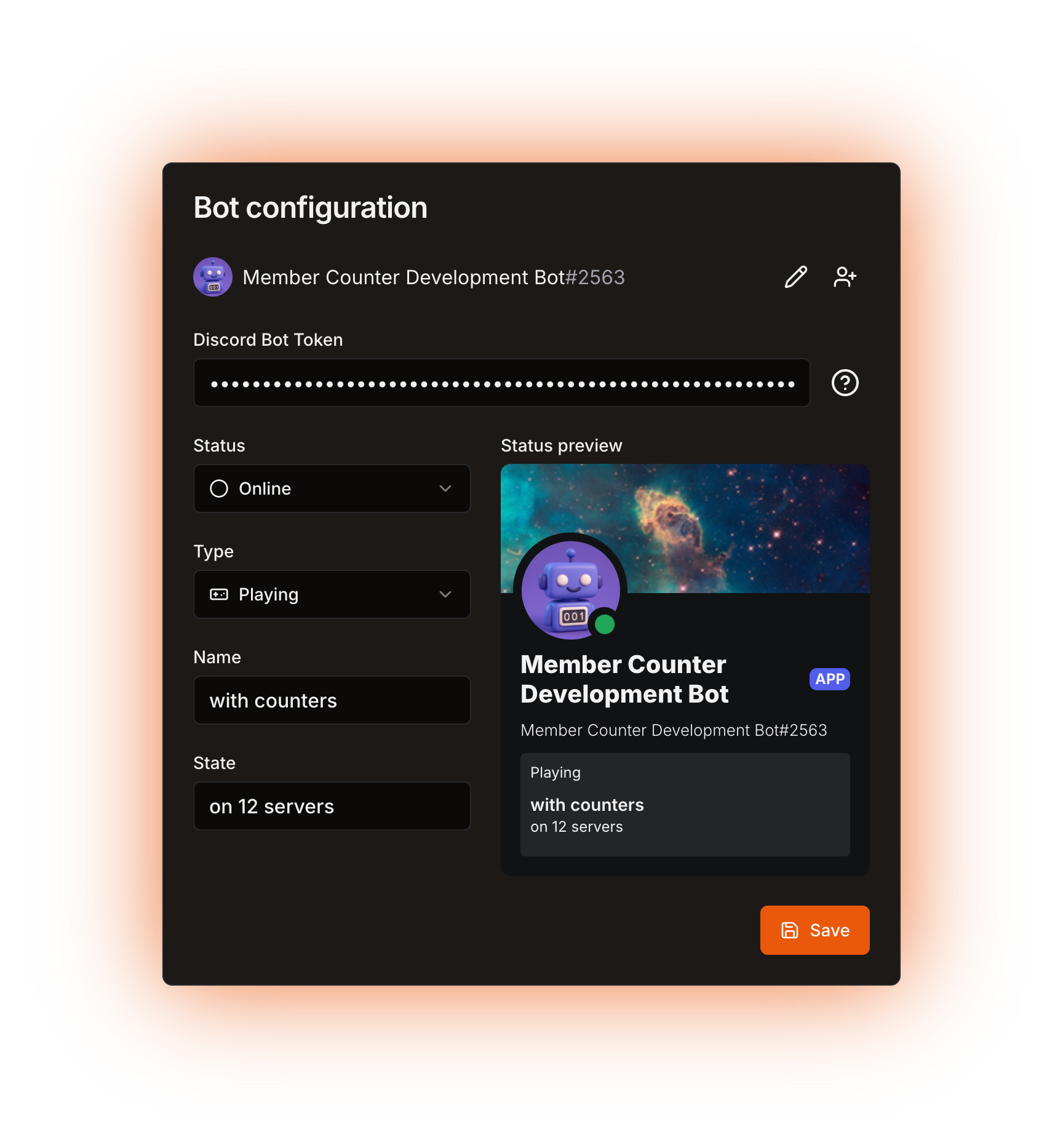
The Bot configuration card, with the live Status preview on the right
## The fields
| Field | What it does | Notes |
| --------------------- | -------------------------------------------------- | --------------------------------------------------------------------------------------------------------------------------------------------------------------------------------------------------------- |
| **Discord Bot Token** | The token your bot logs in with. | Explained in [Setting up your custom bot](/custom-bot/setting-up-custom-bot.md). Saving a **new** token restarts the bot. Until a working token is saved, the bot shows as unknown and cannot be invited. |
| **Status** | The coloured dot next to the bot's name. | **Online**, **Idle**, **Do not disturb** or **Invisible**. Default: **Online**. |
| **Type** | The verb in front of the activity. | **Custom**, **Playing**, **Listening to**, **Streaming**, **Watching** or **Competing in**. Default: **Custom**. |
| **Name** | The activity name, the part that follows the verb. | Hidden when **Type** is **Custom**: a custom status has no verb to attach it to. |
| **State** | The free-text line of the presence. | This is the whole status text when **Type** is **Custom**. Default: `Counting everything!` |
| **URL** | The stream the bot links to. | Only shown when **Type** is **Streaming**. Use a YouTube or Twitch link. |
The **Status preview** redraws as you type, so you see what Discord will show before you save.
{% hint style="info" %}
The bot's avatar, username and banner belong to the [Discord application](/custom-bot/creating-a-discord-bot-account.md), so the card only shows them. **Edit bot details** opens the application in the Discord Developer Portal.
{% endhint %}
## Saving
Click **Save** to apply your changes. With **Autosave** on in your [account settings](/using-the-dashboard/account.md), the card saves by itself shortly after you stop typing.
**Status**, **Type**, **Name**, **State** and **URL** reach the running bot straight away, without a restart, so your counters keep updating. The change is sent once and never retried: if the presence in Discord does not change, save again.
{% hint style="warning" %}
The **Discord Bot Token** is the exception. Saving a token that differs from the stored one stops the running bot and starts it again. Expect a short gap before it is back online, and the [Control panel](/custom-bot/control-panel.md) briefly reporting that your bot is starting.
{% endhint %}
Technical details
* Saving compares the stored config with the new one. A changed `status` or `activity` is pushed to the running bot fire and forget: the call is never queued, and a stopped bot never receives it.
* The bot applies the push in memory, and a job re-applies the presence from those same values every 5 minutes and on ready (`0 */5 * * * *`), so the change holds until the bot restarts.
* A changed token triggers a restart, which does nothing when the bot is stopped. When it is running, it stops the bot, waits for the pod to be gone, and starts it again, start pre-check included.
* Stored defaults (`packages/db/prisma/schema.prisma`): `status` `online`, activity `type` `4` (Custom), `state` `Counting everything!`, `name` empty.
* A starting pod is handed the config as `DISCORD_BOT_INSTANCE_BOT_STATUS` and `DISCORD_BOT_INSTANCE_BOT_PRESENCE_ACTIVITY`, so a restart reloads the presence from the database.
* Autosave fires 10 seconds after the last edit, and every edit re-arms the countdown.
* The bot profile row, the **Edit bot details** link and the invite button come from base64-decoding the first segment of the token to get the application id and fetching that Discord user, which is why a wrong or revoked token hides all three and leaves the bot listed as **Unknown bot {id}**, with the invite button disabled.
* The **URL** is not validated anywhere; it is handed to Discord as typed.
* Self-hosting: there is no dashboard for this. The presence comes from those same two variables in `.env`. That activity list may hold several entries: the first one is used, with a 10% chance of a random one at each 5-minute tick.