> For the complete documentation index, see [llms.txt](https://docs.membercounter.app/llms.txt). Markdown versions of documentation pages are available by appending `.md` to page URLs; this page is available as [Markdown](https://docs.membercounter.app/custom-bot/control-panel.md).
# Control panel
Start and stop your custom bot, read its status and resource usage, and delete it.
The **Control panel** card is where you turn your custom bot on and off and see how it is doing. You will find it on your bot's page in the [dashboard](https://membercounter.app/dashboard), under the **Bot configuration** card.
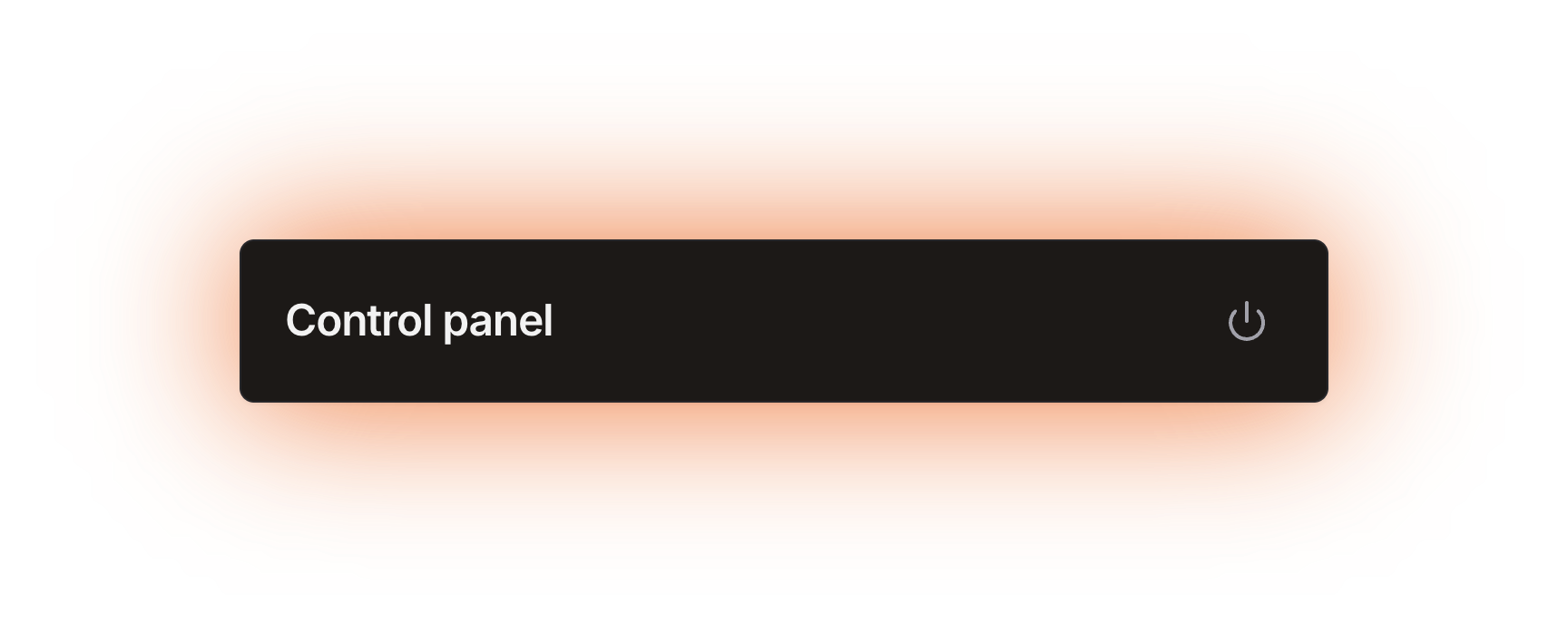
The Control panel card with the bot stopped: only the title and the power button
## The power button
The power icon in the card header is the on/off switch. Press it to start a stopped bot, press it again to stop a running one. Its tooltip tells you the current state, including when a start or a stop is under way.
The card refreshes on its own, so you do not need to reload the page. Starting is not instant.
### When the start is refused
| Message | What to do |
| ---------------------------------------------------- | ---------------------------------------------------------------------------------------------------------------------------------------------------------------------------------------------------------------------------------------------------------- |
| **The bot must have at least a token** | Paste a token in [**Bot configuration**](/custom-bot/changing-bots-status.md) and save. |
| **Bot failed to start (check the token or intents)** | Either the token is wrong (reset it and paste the new one) or the privileged intents are off. Both **PRESENCE INTENT** and **SERVER MEMBERS INTENT** must be enabled, see [Creating a Discord bot account](/custom-bot/creating-a-discord-bot-account.md). |
| **Payment required** | The subscription has expired. See [Managing your subscription](/custom-bot/managing-your-subscription.md). |
## Status and resource usage
While the bot runs, the card shows a sentence about its state and two bars, **CPU Usage** and **RAM Usage**. Both are percentages of the limit your subscription pays for, not raw figures. **RAM Usage** is the one that matters: memory is what your quota limits, and a bot that runs out of it is stopped.
The card also shows what your bot is doing on Discord right now:
* The Discord connection state. **Ready** means the bot is connected.
* The memory the bot is using, with its peak.
* How many users and servers the bot can see.
## Status messages
| Message | What to do |
| ------------------------------------------------------------------------------------------------------------------- | ----------------------------------------------------------------------------------------------------------------------------------------------------------------------------------------------------------------------------------------------------- |
| Your bot is online and running smoothly! | Nothing. This is the healthy state. |
| Your bot is being prepared to run. Please wait a moment. | Nothing. This is the normal first step after you press the power button. |
| Your bot is restarting due to some internal issues. It should be back online shortly. | Wait. If it never settles on the running message, treat it as a crash loop and ask for help. |
| Your bot was stopped because it exceeded the memory limits of your current plan. Upgrade your plan to prevent this. | Raise your quota, see [Managing your subscription](/custom-bot/managing-your-subscription.md). If your server is far smaller than the member figure your quota advertises, contact support instead: capacity increases for misbehaving bots are free. |
Every other message is one for us. Most of them link to the [support server](https://membercounter.app/support) themselves; ask there and we will look into it.
## Deleting the bot
The **Delete bot** button sits below the cards. It asks you to confirm first.
{% hint style="danger" %}
Deleting is irreversible. It stops the bot, cancels the subscription and removes the configuration: token, status, activity, everything. Your counters and server settings are not touched, and the Discord application stays in your Developer Portal until you delete it there yourself.
{% endhint %}
If you only want the bot to stop for a while, press the power button. That is the only thing that stops a bot. **Pause** on the **Subscription** card does not stop it, see [Managing your subscription](/custom-bot/managing-your-subscription.md).
Technical details
* The card polls the bot status every second, and the power button polls it again on its own every 3 seconds.
* A start creates a Kubernetes StatefulSet named after the bot id, with one pod, `-0`; a stop deletes it and waits until the pod is gone. The container then has to be scheduled on a machine before the bot logs in to Discord and caches your servers.
* A start checks four things in order, and deploys nothing until all four pass: the subscription expiry date (`PAYMENT_REQUIRED`), whether a StatefulSet already exists, a token on the config (`BOT_TOKEN_MISSING`), and a real `client.login()` with GuildMembers, GuildPresences and GuildVoiceStates (`BOT_START_PRE_CHECK_FAILED`). The pre-check uses the same privileged intents the bot will run with, so a bot with the intents off cannot be started at all rather than starting and failing quietly.
* The status sentence is one of 13 pod states, listed in `packages/services/src/customBots/parsePodStatus.ts`: SCHEDULING, RUNNING, RESTARTING, TERMINATING, CRASH\_LOOP, OOM\_KILLED, EVICTED, FAILED, IMAGE\_PULL\_FAILED, NODE\_UNAVAILABLE, UNSCHEDULABLE, UNAVAILABLE, UNKNOWN. A pod whose status cannot be read yet shows the SCHEDULING sentence.
* The bars compare the pod's live metrics with the container limits. The memory in the stats panel is the bot process itself, `rss` with `maxrss` as the peak, so it does not match the **RAM Usage** bar, which measures the whole container.
* The server count gains an unavailable figure when Discord has not handed over some servers yet.
* The pod runs with `DISCORD_BOT_INSTANCE_IS_PRIVILEGED` and `DISCORD_BOT_INSTANCE_IS_PREMIUM` forced to `true`, and `NODE_OPTIONS=--max-old-space-size` set to 75% of the container memory limit, the remaining 25% being for buffers, native modules and Discord.js overhead.
* Stopping is not only manual: a controller turns the desired state off for every bot whose subscriptions all expired more than 3 days ago, and then stops it.
* **Delete bot** stops the bot, cancels the subscription with no refund and deletes the row.
* Self-hosting: none of this exists. You start and stop the bot yourself, and the resource limits are whatever your machine gives it.