> For the complete documentation index, see [llms.txt](https://docs.membercounter.app/llms.txt). Markdown versions of documentation pages are available by appending `.md` to page URLs; this page is available as [Markdown](https://docs.membercounter.app/custom-bot/creating-a-discord-bot-account.md).

# Creating a Discord bot account

Create the Discord application, turn on the two privileged intents, and copy the token your bot logs in with.

Both a [custom bot](/custom-bot/how-to-get-a-custom-bot.md) and a [self-hosted bot](/self-hosting/self-hosting.md) log in with your own Discord application. You create it once, in the Discord Developer Portal.

{% hint style="danger" %}
The bot token is a password. Anyone who has it can log in as your bot, read what it can read and post as it. Never paste it in a chat, a screenshot or an issue. **Our staff will never ask you for your token.**
{% endhint %}

## Create the application

{% stepper %}
{% step %}

### Open the Developer Portal

Open [discord.com/developers/applications?new\_application=true](https://discord.com/developers/applications?new_application=true) and sign in with the Discord account that should own the bot. That link opens the **New Application** dialog for you; you can also click **New Application** at the top right of the portal.
{% endstep %}

{% step %}

### Create the application

Give it a name, accept the developer terms and click **Create**. The name you type here is the name your bot shows in Discord, so use the one you actually want, and use a dedicated application instead of reusing a bot you already run.

<figure><img src="https://1582170640-files.gitbook.io/~/files/v0/b/gitbook-x-prod.appspot.com/o/spaces%2F-Lu2S5r7lKtu4IK5ucu9%2Fuploads%2Fgit-blob-edaf8d184d3e5fd48e0babb4ab146f18eb98f81b%2Fdevportal-new-application.png?alt=media" alt="The New Application dialog in the Discord Developer Portal"><figcaption><p>Name the application and click <strong>Create</strong></p></figcaption></figure>

Upload the avatar and banner here too; this is the only place that changes the bot's Discord profile.
{% endstep %}
{% endstepper %}

## Turn on the privileged intents

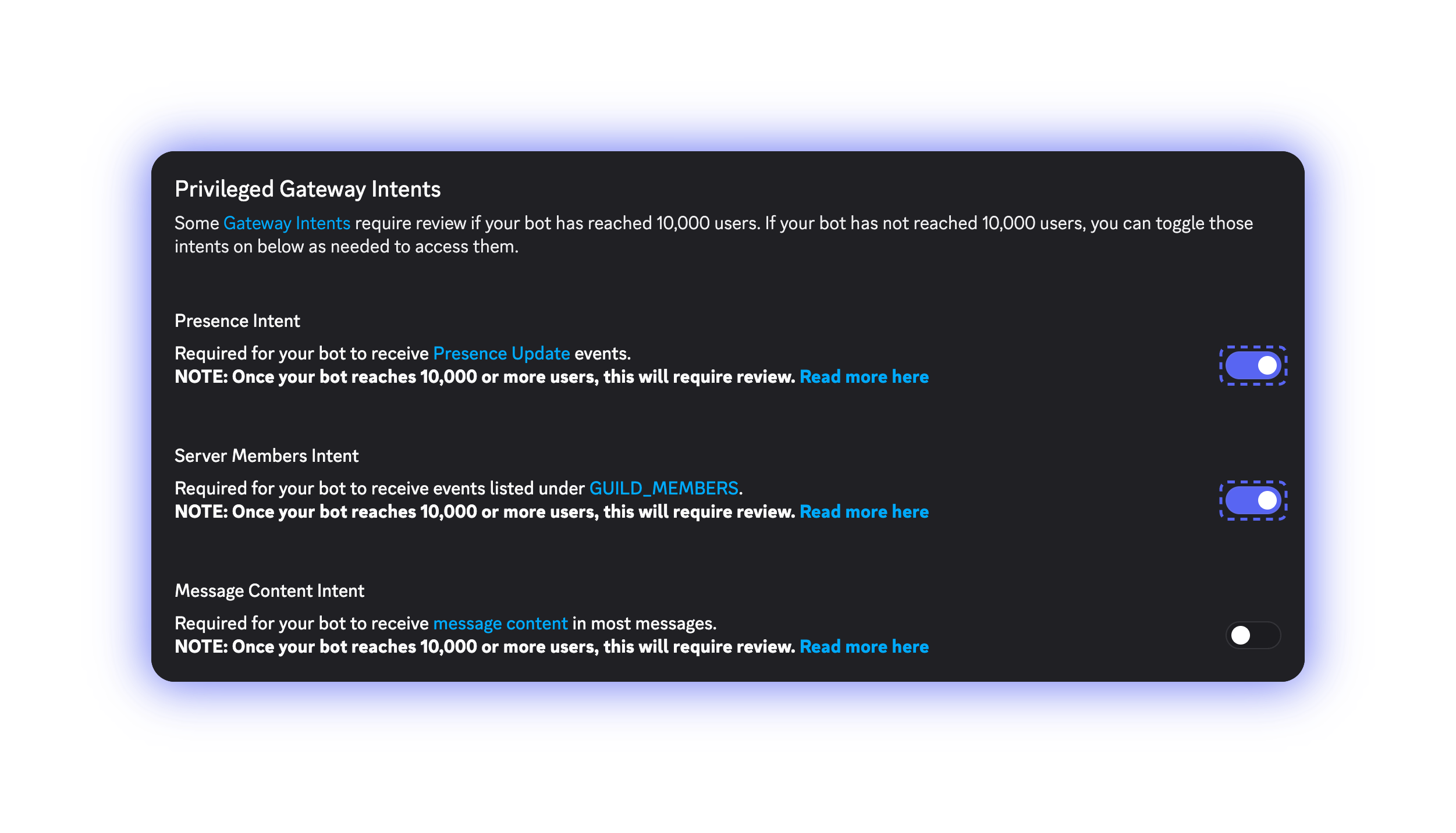
Open the **Bot** tab and scroll to **Privileged Gateway Intents**. Member Counter needs two of the three. Set them as below and click **Save Changes**.

| Intent                     | Set it to | Why                                                                                        |
| -------------------------- | --------- | ------------------------------------------------------------------------------------------ |
| **Presence Intent**        | **On**    | Tells Online, Idle and Do Not Disturb apart, and powers the "playing a game" member filter |
| **Server Members Intent**  | **On**    | Counts members exactly and powers the role and account-type filters                        |
| **Message Content Intent** | **Off**   | Member Counter never reads message content                                                 |

<figure><img src="https://1582170640-files.gitbook.io/~/files/v0/b/gitbook-x-prod.appspot.com/o/spaces%2F-Lu2S5r7lKtu4IK5ucu9%2Fuploads%2Fgit-blob-e3e4ff5e05a3089eab52d3b33c4f78bd29332f66%2Fdevportal-bot-intents.png?alt=media" alt="The Privileged Gateway Intents section with Presence and Server Members enabled"><figcaption><p><strong>Presence Intent</strong> and <strong>Server Members Intent</strong> on, <strong>Message Content Intent</strong> off</p></figcaption></figure>

{% hint style="warning" %}
The bot asks Discord for these two intents at login, so it **cannot start** while they are off.
{% endhint %}

## Copy the token

Still in the **Bot** tab, click **Reset Token** and confirm. Discord shows the token **once**. Copy it and keep it somewhere safe.

<figure><img src="https://1582170640-files.gitbook.io/~/files/v0/b/gitbook-x-prod.appspot.com/o/spaces%2F-Lu2S5r7lKtu4IK5ucu9%2Fuploads%2Fgit-blob-934106d0d13dee1d0506daff074e8ed0f6e1e40d%2Fdevportal-reset-token.png?alt=media" alt="The Reset Token button in the Bot tab"><figcaption><p>The <strong>Reset Token</strong> button on the <strong>Bot</strong> tab. The new token is shown only once, right after you confirm</p></figcaption></figure>

Resetting the token invalidates the old one, so a bot already running on it stops working until you paste the new one. Where the token goes next:

* **Custom bot:** paste it into **Discord Bot Token** in the dashboard. See [Setting up a custom bot](/custom-bot/setting-up-custom-bot.md).
* **Self-hosted bot:** put it in `DISCORD_BOT_INSTANCE_TOKEN` in your `.env`. See [Configuration](/self-hosting/configuration.md).

## OAuth2 credentials

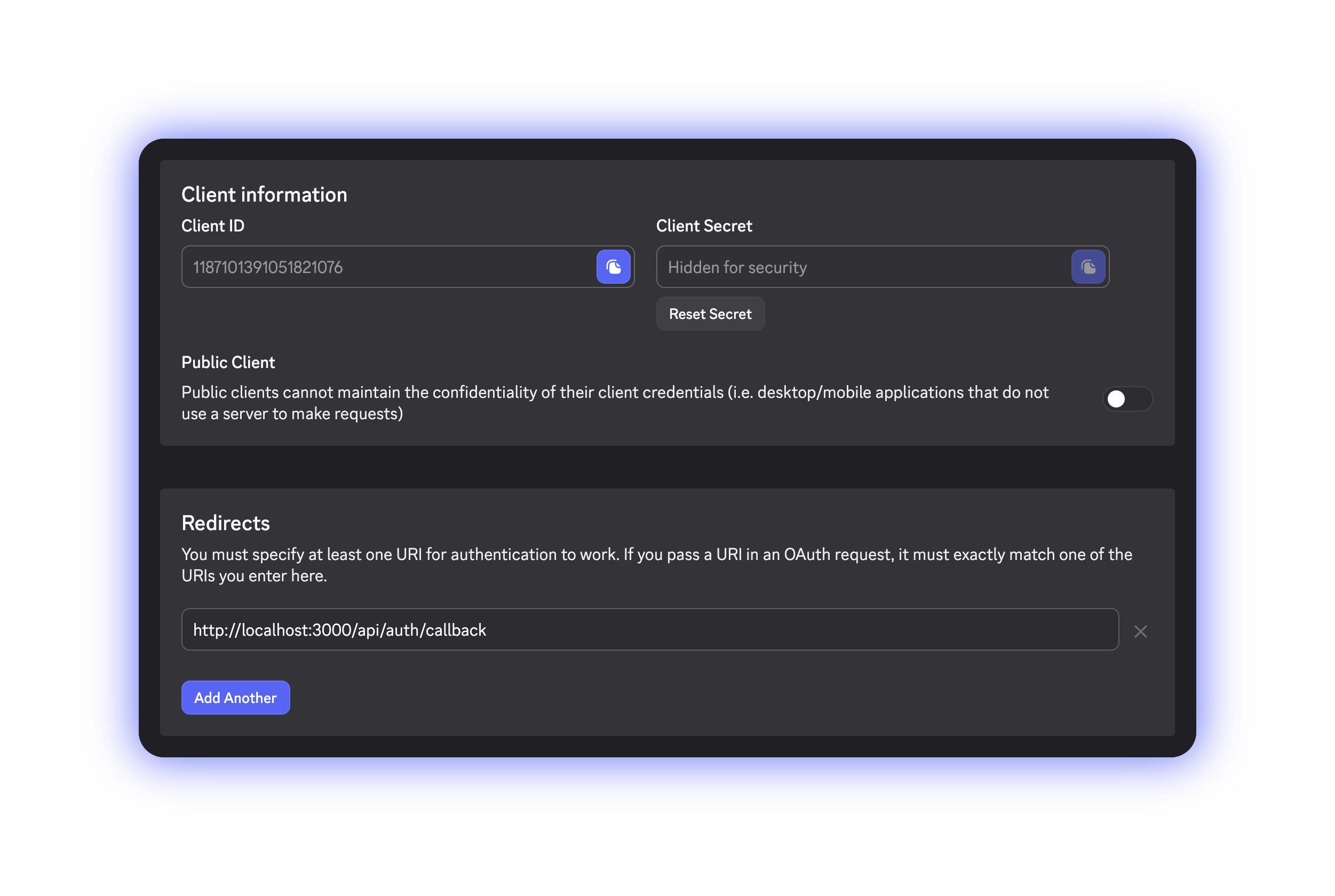
Self-hosting only: a self-hosted bot also needs the OAuth2 client id, secret and redirect URL from the same application. See [Configuration](/self-hosting/configuration.md).

<figure><img src="https://1582170640-files.gitbook.io/~/files/v0/b/gitbook-x-prod.appspot.com/o/spaces%2F-Lu2S5r7lKtu4IK5ucu9%2Fuploads%2Fgit-blob-6d6dfd7691db23bb6a9a7dac08ead790f466e9f1%2Fdevportal-oauth2-credentials.png?alt=media" alt="The OAuth2 tab showing the client id, the reset secret button and the redirects list"><figcaption><p>The <strong>OAuth2</strong> tab of the same application</p></figcaption></figure>

<details>

<summary>Technical details</summary>

* Every bot requests `Guilds`, `GuildEmojisAndStickers` and `GuildModeration`, plus `GuildMembers`, `GuildPresences` and `GuildVoiceStates` for a privileged premium bot. `MessageContent` is never requested. The list is in `packages/common/src/bot/botIntents.ts`.
* Before deploying anything, a custom bot start logs in for real with the privileged intents. A failure throws `BOT_START_PRE_CHECK_FAILED`, shown as **Bot failed to start (check the token or intents)**; no saved token throws `BOT_TOKEN_MISSING`, **The bot must have at least a token**.
* A self-hosted bot with an intent off exits with Discord's disallowed-intents error instead of starting. Past 100 servers Discord only keeps granting the intents through bot verification; below that the toggles are enough.
* The dashboard never asks for a client id: it calls Discord's `/users/@me` with the saved bot token, which is why the profile row fills in as soon as you paste a valid one. With no usable token it shows the bot as **Unknown Bot**.
* The application id is base64-decoded from the token's first segment, for the sidebar list and for the `DISCORD_CLIENT_ID` the deployed pod gets.
* Variables a self-hoster fills from this application: `DISCORD_BOT_INSTANCE_TOKEN`, `DISCORD_CLIENT_ID` (the application id), `DISCORD_CLIENT_SECRET`, `DISCORD_OAUTH2_REDIRECT_URI`, mandatory and with no default (`http://localhost:3000/api/auth/callback` in `.env.example`; set it to your `WEBSITE_URL` followed by `/api/auth/callback` yourself), and `MAIN_DISCORD_CLIENT_ID`.
* `MAIN_DISCORD_CLIENT_ID` ships as `478567255198662656`, the official bot, so `/invite` on a self-hosted bot links the official bot until you put your own client id there.
* The redirect has to match character for character, including the scheme, the port and the absence of a trailing slash. A mismatch gives Discord's "Invalid OAuth2 redirect\_uri" error when someone signs in to your dashboard.

</details>