> For the complete documentation index, see [llms.txt](https://docs.membercounter.app/llms.txt). Markdown versions of documentation pages are available by appending `.md` to page URLs; this page is available as [Markdown](https://docs.membercounter.app/custom-bot/how-to-get-a-custom-bot.md).
# How to get a custom bot
What a custom bot costs, how the quota works, and how to create one from the dashboard.
A custom bot needs a [Discord bot token](/custom-bot/creating-a-discord-bot-account.md) and a subscription. Creating it in the dashboard is free; the token and the payment are in [Setting up a custom bot](/custom-bot/setting-up-custom-bot.md).
## What it costs
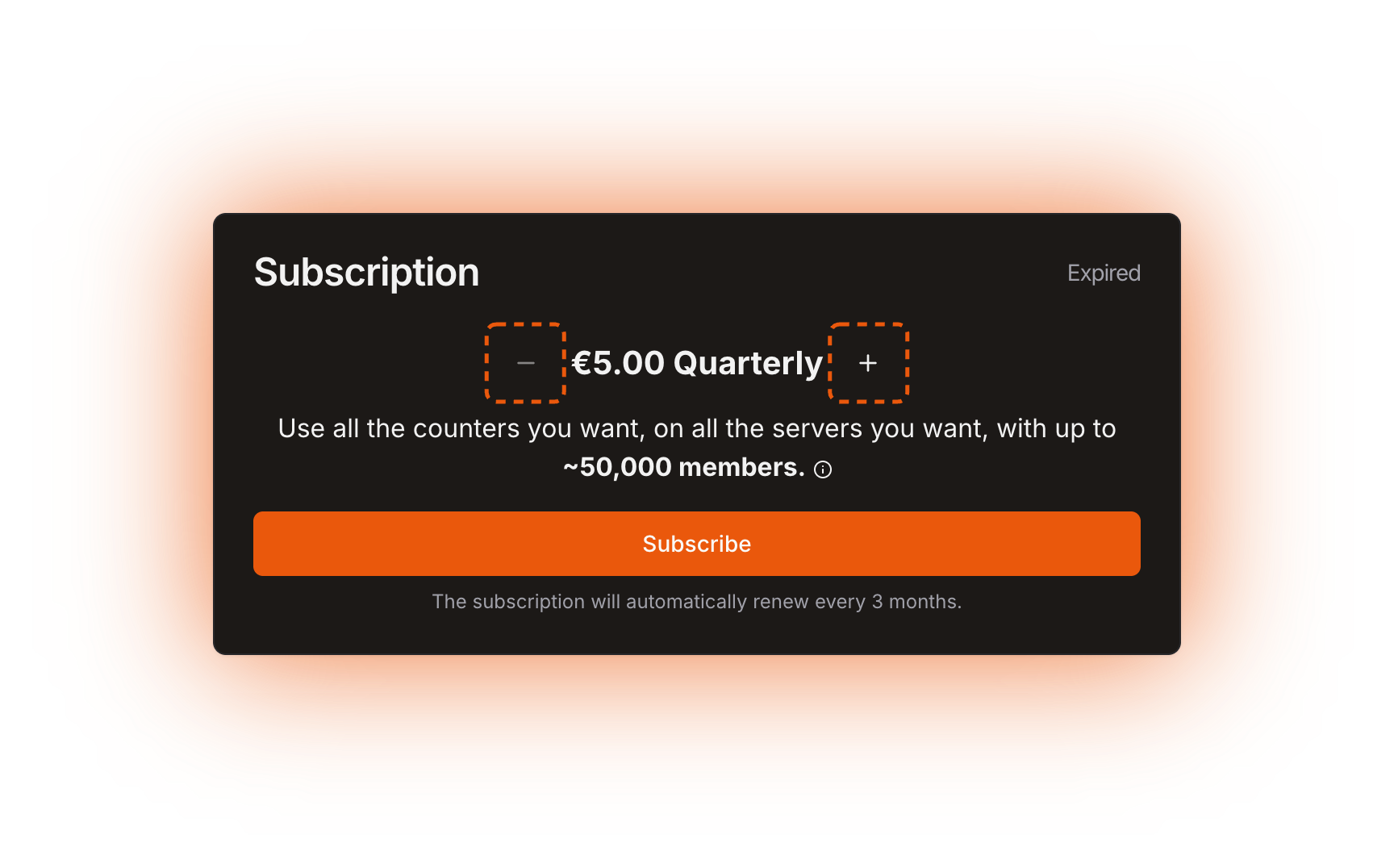
A custom bot costs **€5.00 per quarter for every \~50,000 members** it is going to serve. You set that size in the **Subscription** card: each step adds \~50,000 members and €5.00 to the price.
The minus and plus buttons set the size of the subscription
### What a quota unit really is
The member figure is a guideline, not a hard limit. What we monitor is memory: one quota unit is a fixed slice of RAM and CPU, and \~50,000 members is roughly what fits in one slice.
So pick the number of units that matches the total members across every server your bot will join. If the bot misbehaves below that number, write to us at the [support server](https://membercounter.app/support): we can raise your capacity for free instead of charging you for another unit.
{% hint style="warning" %}
If the bot runs out of memory it is stopped, and the [Control panel](/custom-bot/control-panel.md) tells you to upgrade your plan. You can raise the quota at any time from the **Subscription** card.
{% endhint %}
### How you pay
There are two payment methods:
* **PayPal.** Payments must be in **EUR**. A payment in any other currency is refunded automatically and the subscription cancelled.
* **Account credit.** If your account has a balance, the subscribe dialog offers a **Subscribe using my credit** button. You can only pay this way when the balance covers the whole price.
Credit is granted by our staff in special cases only. **It cannot be bought from the dashboard.** When you have some, it shows on your [account page](/using-the-dashboard/account.md).
Both methods are walked through in [Setting up a custom bot](/custom-bot/setting-up-custom-bot.md). Renewals, upgrades, pausing and cancelling are in [Managing your subscription](/custom-bot/managing-your-subscription.md).
## Create the custom bot
Creating the bot is free and instant. Nothing is charged until you subscribe.
{% stepper %}
{% step %}
### Open the dashboard
Go to the [dashboard](https://membercounter.app/dashboard) and sign in with Discord.
{% endstep %}
{% step %}
### Click Create custom bot
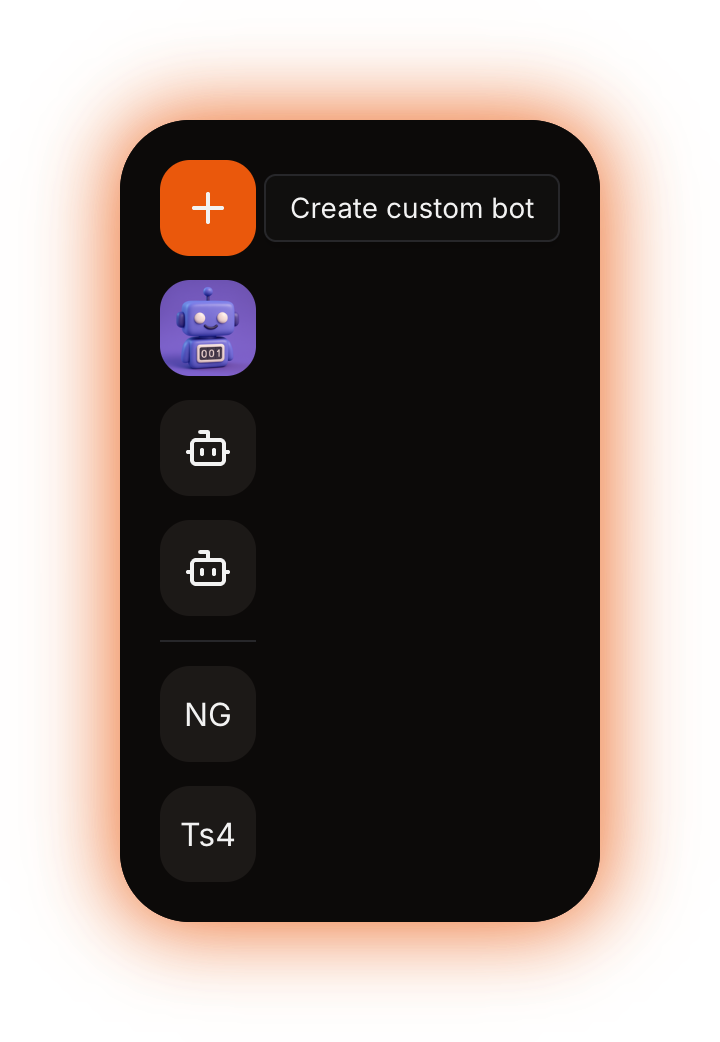
Click **Create custom bot** at the top of the bot and server selector in the sidebar.
The Create custom bot button sits above the server list
{% endstep %}
{% step %}
### You land on the new bot's page
The dashboard creates an empty bot, with no token and no subscription, and opens its page. From here, follow [Setting up a custom bot](/custom-bot/setting-up-custom-bot.md).
{% endstep %}
{% endstepper %}
{% hint style="info" %}
Right after creating a bot you have to wait a few seconds before you can create another one. You can create as many custom bots as you like, but each one needs its own subscription to run.
{% endhint %}
Technical details
* `CUSTOM_BOT_QUOTA_UNIT_PRICE` is `500n`, in cents, with `DEFAULT_CURRENCY` `EUR`; both live in `packages/common/src/Constants.ts`. The subscription is created with an `interval` of 3 months.
* The quota picker runs from `1` to `PAYPAL_CUSTOMBOTS_MAX_QUOTA`, `50` in `.env.example`, so the largest subscription the dashboard sells is €250.00 per quarter. The member figure printed under the price is the quota multiplied by 50,000.
* One unit is `K8S_CUSTOMBOTS_BASE_QUOTA_CPU` millicores of CPU and `K8S_CUSTOMBOTS_BASE_QUOTA_MEM` MiB of memory (`50` and `100` in `.env.example`), multiplied by the quota and by the bot's `quotaMultiplier`. Node.js gets 75% of the container memory as its heap through `--max-old-space-size`.
* `quotaMultiplier` is a per-bot number, `1` by default, that staff raise to give a bot more CPU and memory without changing the price. That is the capacity increase support grants for free.
* Kubernetes kills the container when it passes the memory limit, and the control panel then reports the pod status `OOM_KILLED` with "Your bot was stopped because it exceeded the memory limits of your current plan. Upgrade your plan to prevent this."
* Credit is a `BigInt` on the user row, in euro cents like the prices. Spending it creates a `CreditSubscription`, which charges the balance again every `interval` months, and refunds add the amount back. Only staff with `UserPermissions.ManageUsers` can write it, and no code path turns a donation into credit on its own.
* Creating a bot inserts a row with your user id and an empty activity, no token and no payment, then opens `/dashboard/bots/`. `/dashboard/bots` without an id redirects to your first bot, or to `/dashboard` when you have none.
* The 15-second cooldown after creating a bot is enforced in the dashboard only. Nothing on the server limits how many custom bots one account may create.