> For the complete documentation index, see [llms.txt](https://docs.membercounter.app/llms.txt). Markdown versions of documentation pages are available by appending `.md` to page URLs; this page is available as [Markdown](https://docs.membercounter.app/custom-bot/setting-up-custom-bot.md).

# Setting up your custom bot

Paste the token, subscribe, start the bot from the control panel and invite it to your server.

You need a custom bot in the dashboard ([How to get a custom bot](/custom-bot/how-to-get-a-custom-bot.md)) and a Discord application with a token ([Creating a Discord bot account](/custom-bot/creating-a-discord-bot-account.md)). Open your bot's page in the [dashboard](https://membercounter.app/dashboard) by picking it from the sidebar selector, then do the steps below in this order.

## 1. Paste the token

In the **Bot configuration** card, paste the token you copied from the Developer Portal into **Discord Bot Token** and click **Save**. Autosave is off by default and is switched on from [your account](/using-the-dashboard/account.md).

<figure><img src="https://1582170640-files.gitbook.io/~/files/v0/b/gitbook-x-prod.appspot.com/o/spaces%2F-Lu2S5r7lKtu4IK5ucu9%2Fuploads%2Fgit-blob-c5f9515cbeceeb9af2644c7ce35b329ed92da1e4%2Fcustom-bot-token-field.png?alt=media" alt="The Discord Bot Token field in the Bot configuration card"><figcaption><p>Paste the token into <strong>Discord Bot Token</strong> and click <strong>Save</strong></p></figcaption></figure>

As soon as you paste a valid token, the card reads your bot's profile from Discord and shows its name and avatar. **Invite bot** stays disabled until you save a token.

{% hint style="info" %}
A running bot applies a change to **Status**, **Type**, **Name**, **State** or **URL** live. The token is the exception: the bot restarts by itself so it can log in again. See [Changing the bot's status](/custom-bot/changing-bots-status.md).
{% endhint %}

## 2. Subscribe

A custom bot only runs while it has an active subscription.

{% stepper %}
{% step %}

### Pick your quota

In the **Subscription** card, use the minus and plus buttons to pick how many units the servers you plan to add the bot to need. The price above updates as you go. What a unit buys is explained in [How to get a custom bot](/custom-bot/how-to-get-a-custom-bot.md#what-it-costs).
{% endstep %}

{% step %}

### Click Subscribe and agree to the terms

The **Setup subscription** dialog opens. Billing starts right away, and you can upgrade the quota later at any time. Tick the terms checkbox: the payment buttons stay unusable until you do.
{% endstep %}

{% step %}

### Pay

You can pay in two ways:

* The **PayPal** button, which opens PayPal's own subscribe flow. The payment has to be in **EUR**; anything else is refunded automatically and the subscription cancelled.
* **Subscribe using my credit**, which only appears when your account has credit, and stays disabled while the balance is below the price.

<figure><img src="https://1582170640-files.gitbook.io/~/files/v0/b/gitbook-x-prod.appspot.com/o/spaces%2F-Lu2S5r7lKtu4IK5ucu9%2Fuploads%2Fgit-blob-866c01b608c13db50f375e58aa7baf8536878c3f%2Fcustom-bot-subscription-dialog.png?alt=media" alt="The Setup subscription dialog"><figcaption><p>The <strong>Setup subscription</strong> dialog with the terms checkbox and both payment methods</p></figcaption></figure>
{% endstep %}
{% endstepper %}

Once the payment goes through, the **Subscription** card shows the date the subscription expires on. Renewals, upgrades, **Pause**, **Resume** and **Cancel** are in [Managing your subscription](/custom-bot/managing-your-subscription.md).

## 3. Start the bot

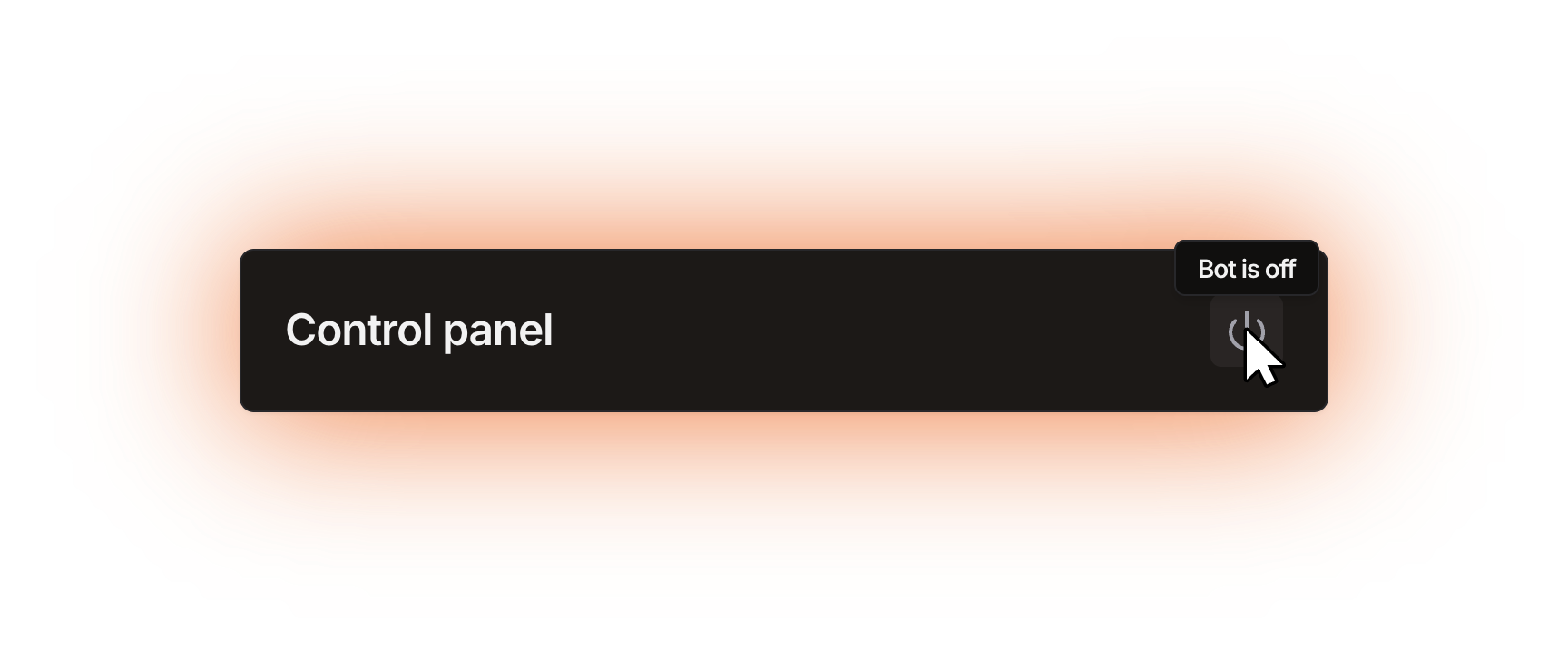
Go to the **Control panel** card and click the power button. Its tooltip tells you the current state.

Starting takes a moment. Once the bot runs, the card shows its status and how much of your CPU and RAM quota it is using.

<figure><img src="https://1582170640-files.gitbook.io/~/files/v0/b/gitbook-x-prod.appspot.com/o/spaces%2F-Lu2S5r7lKtu4IK5ucu9%2Fuploads%2Fgit-blob-88d503b6100246c4fdc51f5f30778aea4f06cf18%2Fcustom-bot-power-button.png?alt=media" alt="The Control panel card"><figcaption><p>The power button in the <strong>Control panel</strong>, with the tooltip showing the current state</p></figcaption></figure>

If the start fails, the dashboard tells you why:

| Message                                              | What to do                                                                                                                                                                                      |
| ---------------------------------------------------- | ----------------------------------------------------------------------------------------------------------------------------------------------------------------------------------------------- |
| **Payment required**                                 | There is no active subscription. Go back to step 2.                                                                                                                                             |
| **The bot must have at least a token**               | The subscription is fine, but no token is saved. Go back to step 1.                                                                                                                             |
| **Bot failed to start (check the token or intents)** | Discord refused the login. Either the token is wrong or expired, or the [two privileged intents](/custom-bot/creating-a-discord-bot-account.md#turn-on-the-privileged-intents) are not both on. |

Every other message the **Control panel** can show is listed in [Control panel](/custom-bot/control-panel.md).

## 4. Invite it to your server

Click **Invite bot** at the top of the bot's page, pick the server and authorise it. The link already asks for the permissions Member Counter needs, and you need the **Manage Server** permission in the server you pick. See [Adding the bot to your server](/getting-started/adding-bot-to-the-server.md).

{% hint style="info" %}
**Your custom bot takes over from the public bot.** In a server where both are present, your custom bot claims the counters and the public bot stops updating them. You do not need to kick the public bot, and nothing you already set up is lost.
{% endhint %}

From here, set up your counters exactly as you would with the public bot: see [Quick setup](/getting-started/quick-setup.md).

If something goes wrong, ask at the [support server](https://membercounter.app/support) or check [Troubleshooting](/using-the-dashboard/troubleshooting.md).

<details>

<summary>Technical details</summary>

* Saving a changed token restarts the bot: the pod is stopped, waited for and started again. It does nothing while the bot is stopped. A changed status or activity is pushed to the running bot instead, with no restart.
* `start` checks in this order: the subscription expiry (`PAYMENT_REQUIRED`), whether a StatefulSet already exists, the saved token (`BOT_TOKEN_MISSING`), then the login pre-check (`BOT_START_PRE_CHECK_FAILED`). A brand-new bot therefore reports **Payment required** before it complains about the missing token.
* Starting creates a Kubernetes StatefulSet named after the bot id, so the pod is `<botId>-0`. Nothing is deployed until the three checks pass, and the pod carries a `membercounter.app/bot-tier=premium` toleration.
* **Invite bot** links to `/invite?botId=<appId>`, with the application id taken from the saved token.
* An expired subscription keeps the bot running for `SUBSCRIPTION_GRACE_PERIOD`, 3 days. After that a scheduled job clears the bot's desired state and stops it. Start, stop, restart and the expiry job live in `packages/services/src/customBots/index.ts`.
* The takeover runs on a per-guild priority in Redis. Every instance advertises its `DISCORD_BOT_INSTANCE_COMPUTE_PRIORITY` on cron `0 */5 * * * *` with a 900 second TTL, a stored value is only overwritten by one that is equal or higher, and an instance updates only the guilds whose advertised priority is at most its own. Public bots advertise `0`, custom bots `2`.

</details>