> For the complete documentation index, see [llms.txt](https://docs.membercounter.app/llms.txt). Markdown versions of documentation pages are available by appending `.md` to page URLs; this page is available as [Markdown](https://docs.membercounter.app/getting-started/create-from-scratch.md).

# Creating your first counter

Build a counter channel yourself in the dashboard, from an empty channel to a live template.

[Quick setup](/getting-started/quick-setup.md) gives you a set of ready-made channels. Here you pick the channel yourself and write the template.

{% hint style="info" %}
**Before you start,** [**invite the bot**](/getting-started/adding-bot-to-the-server.md) **and open** [**the dashboard**](https://membercounter.app/dashboard)**.** You need **Administrator** or **Manage Server** in the server.
{% endhint %}

{% stepper %}
{% step %}
**Create a channel in Discord**

Make a voice channel, a category, a text channel or an announcement channel. Voice channels and categories get their **name** rewritten, text and announcement channels their **topic**. The name you give it now does not matter; the bot overwrites it on the next refresh.

{% hint style="warning" %}
Forum, media and stage channels are greyed out because they are not supported yet.
{% endhint %}

<figure><img src="https://1582170640-files.gitbook.io/~/files/v0/b/gitbook-x-prod.appspot.com/o/spaces%2F-Lu2S5r7lKtu4IK5ucu9%2Fuploads%2Fgit-blob-597d5aa51b8b7d8eb65b8aacb3b6686cf7e20dbf%2Fdiscord-create-channel.png?alt=media" alt="Discord&#x27;s Create Channel dialog"><figcaption><p>Any voice, category, text or announcement channel will do</p></figcaption></figure>
{% endstep %}

{% step %}
**Open the channel in the dashboard**

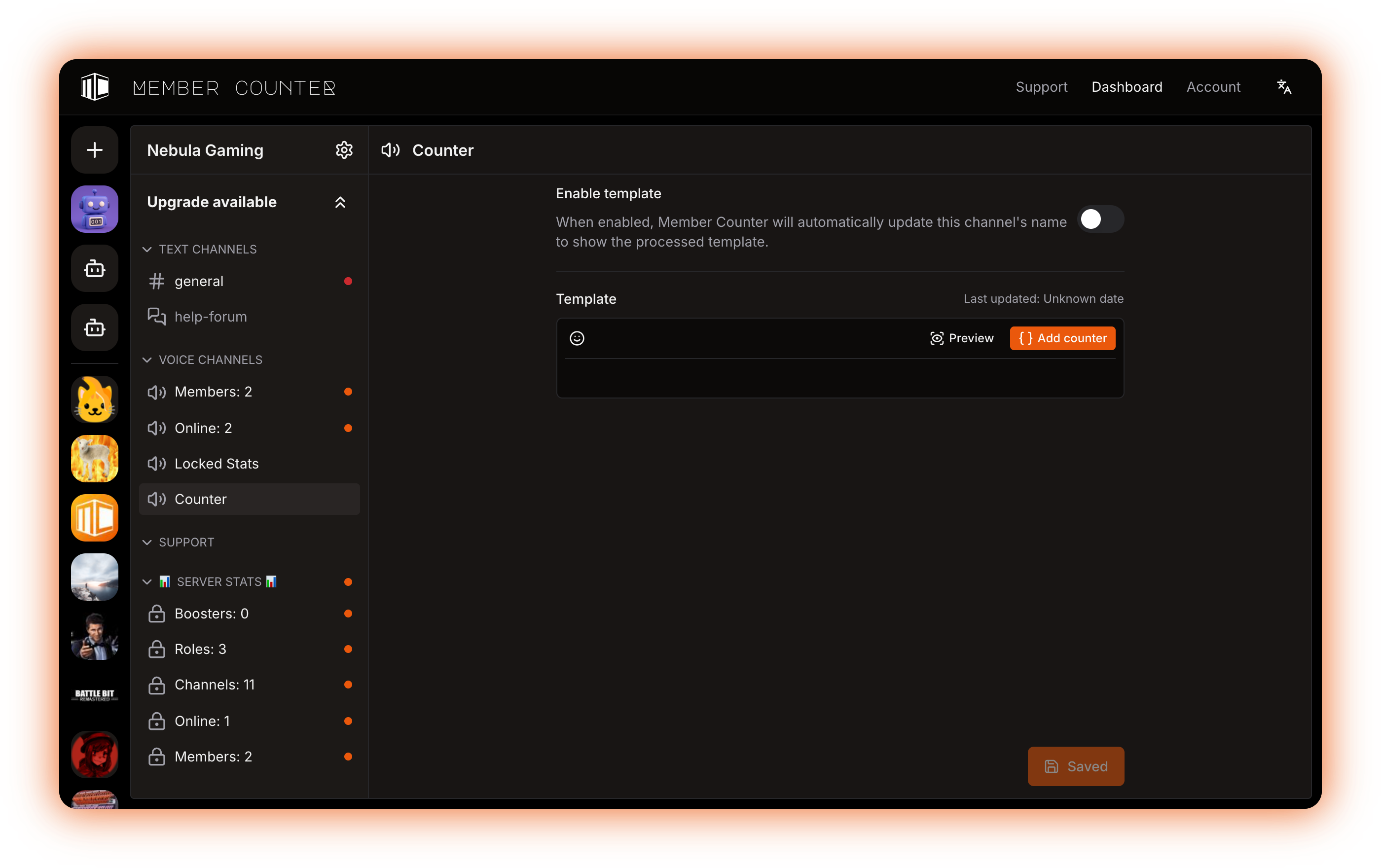
Select your server in the rail on the left, then click the channel you just made. If the bot is missing a permission there, the page says so. Fix it in Discord and press **Check again**.

<figure><img src="https://1582170640-files.gitbook.io/~/files/v0/b/gitbook-x-prod.appspot.com/o/spaces%2F-Lu2S5r7lKtu4IK5ucu9%2Fuploads%2Fgit-blob-2f9f62da1199c27390cdc1d8a22d2f5ec4412b61%2Fdashboard-channel-page.png?alt=media" alt="The dashboard channel page with the template editor"><figcaption><p>The channel page: the enable toggle, the template editor and the save button</p></figcaption></figure>
{% endstep %}

{% step %}
**Turn on the Enable template toggle**

Nothing happens until this toggle is on.
{% endstep %}

{% step %}
**Write the text and add a counter**

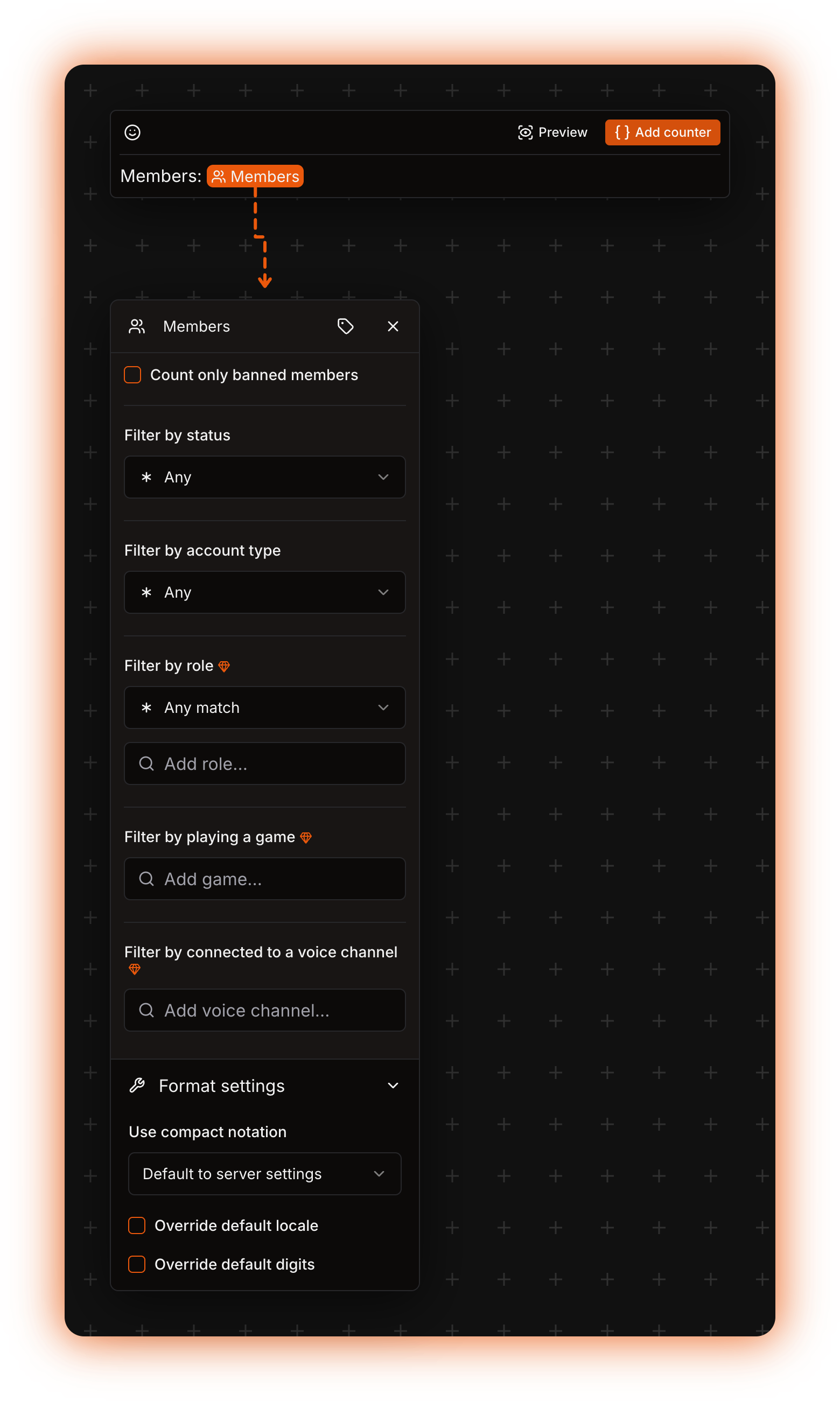
Type the fixed part of the name first, for example `Members:` , then press **Add counter** and pick the counter you want. It is inserted as a chip, and the text around it stays exactly as you typed it, emoji included.

<figure><img src="https://1582170640-files.gitbook.io/~/files/v0/b/gitbook-x-prod.appspot.com/o/spaces%2F-Lu2S5r7lKtu4IK5ucu9%2Fuploads%2Fgit-blob-37b356da1260f7006ccb63f5762545db715983e4%2Feditor-add-counter.png?alt=media" alt="The Add counter picker open over the template editor"><figcaption><p>Search the counter list from inside the editor</p></figcaption></figure>
{% endstep %}

{% step %}
**Configure the counter**

Click the chip to open its options panel. Every counter has its own options; the [Counters reference](/counters-reference/counters-list.md) has a page for each one. **Format settings**, at the bottom of the panel, is the same for every counter: leave it alone and the counter follows your [Server settings](/using-the-dashboard/server-settings.md).

<figure><img src="https://1582170640-files.gitbook.io/~/files/v0/b/gitbook-x-prod.appspot.com/o/spaces%2F-Lu2S5r7lKtu4IK5ucu9%2Fuploads%2Fgit-blob-8974771752cd590779388c736da3407c55a4d2a1%2Feditor-counter-options.png?alt=media" alt="The counter options panel open beside the template editor"><figcaption><p>Each counter brings its own options</p></figcaption></figure>

**Edit display label**, in the panel header, renames the chip in the editor only; the channel output does not change.

<figure><img src="https://1582170640-files.gitbook.io/~/files/v0/b/gitbook-x-prod.appspot.com/o/spaces%2F-Lu2S5r7lKtu4IK5ucu9%2Fuploads%2Fgit-blob-5254b9d12a785a9c152d88154b99e810a591f7b2%2Feditor-display-label.png?alt=media" alt="The Display label dialog beside the counter options panel"><figcaption><p>A display label only renames the chip in the editor</p></figcaption></figure>
{% endstep %}

{% step %}
**Preview, then save**

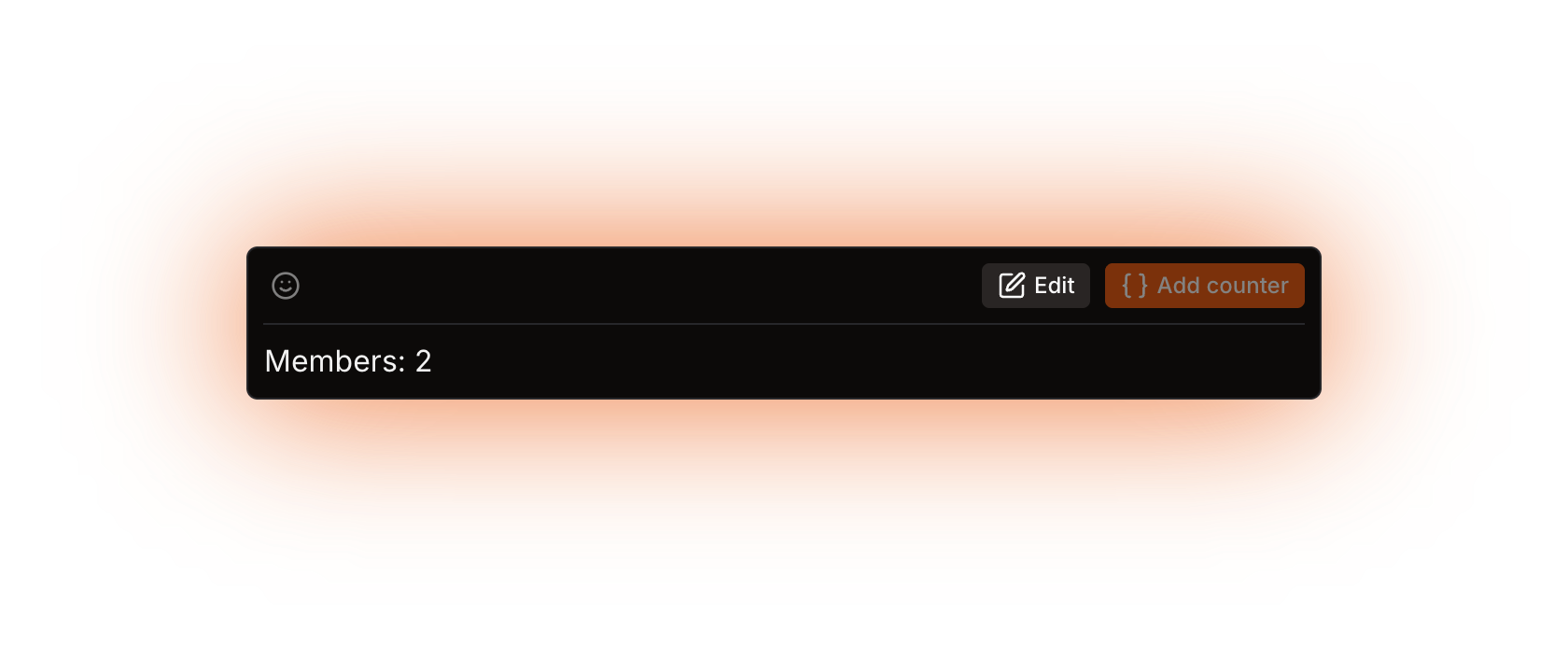
Press **Preview** on the editor toolbar to swap the chips for the values they return right now, and **Edit** to go back. When it looks right, press **Save**. Autosave is off by default and is switched on from your [account settings](/using-the-dashboard/account.md).

{% hint style="warning" %}
A template for a channel **name** has to come out at least 2 characters long after trimming. A shorter result fails with **The result for the channel name is less than 2 characters long.** and the bot renames the channel to **ERROR!**
{% endhint %}

<figure><img src="https://1582170640-files.gitbook.io/~/files/v0/b/gitbook-x-prod.appspot.com/o/spaces%2F-Lu2S5r7lKtu4IK5ucu9%2Fuploads%2Fgit-blob-ffb8ef56db57c5ea0226187dcd23c7e875aa3d42%2Feditor-preview-first-counter.png?alt=media" alt="The template editor in preview mode"><figcaption><p>Preview resolves every counter to its current value</p></figcaption></figure>
{% endstep %}
{% endstepper %}

## When will the channel change?

Not immediately. Counters refresh every 10 minutes on the free public bot and every 5 minutes on the legacy premium bot, a custom bot and a self-hosted bot, and the schedule does not run at the moment you save. Your channel picks up its new name on the next refresh, see [How counters update](/using-the-dashboard/how-counters-update.md).

Next: the [Template editor](/using-the-dashboard/template-editor.md), [Nested counters](/using-the-dashboard/nested-counters.md) and [Formatting counters](/using-the-dashboard/customizing-counters.md).

<details>

<summary>Technical details</summary>

* `isBotSupportedChannel` decides which channel types can carry a template.
* Editing a server needs Administrator or Manage Guild in that server, or a staff account with the ManageGuilds permission. Without it the page answers "You don't have permission to manage this server.\nAsk an admin at {{guildName}} to give you Administrator or Manage Guild permissions."
* **Preview** runs the same `evaluateTemplate` on the bot as a real update, with your channel's real type, so it hits the same truncation, timeouts and errors as the bot would.
* `evaluateTemplate` trims the result, then cuts a text or announcement **topic** at 1023 characters and any other supported channel **name** at 99. Each counter gets 60 seconds ("The evaluation took too long and timed out."), and the nested-counter walk aborts after 50,000 iterations. These limits live in `packages/services/src/DataSource/index.ts`.
* Format settings resolve per counter first and fall back to the server's locale, compact notation and digits. Custom digits are only substituted on text and announcement channels, never in a channel name.
* Autosave fires 10 seconds after the last edit (`AUTOSAVE_DEBOUNCE_MS = 10_000`) and every further edit re-arms it; clicking the button during the countdown saves at once. Leaving with unsaved changes asks for confirmation first.
* The channel row stores `template` and `isTemplateEnabled`. The update job reads only enabled templates, so turning the toggle off leaves the last written name or topic in place instead of restoring the old one.
* After a failed update the channel page shows the stored reason, and the channel is marked in the server nav menu.
* Self-hosting: the website reaches the bot process over Redis pub/sub with `BDE_CALL_TIMEOUT` as the request timeout (2000 ms in `.env.example`), so **Preview** fails when no bot process answers in time.

</details>