> For the complete documentation index, see [llms.txt](https://docs.membercounter.app/llms.txt). Markdown versions of documentation pages are available by appending `.md` to page URLs; this page is available as [Markdown](https://docs.membercounter.app/using-the-dashboard/template-editor.md).

# Template editor

Write a template with text, emojis, mentions, formatting and counters, then preview it and save it.

A template is what the bot writes into a channel. It is ordinary text with counters dropped into it, and you edit it in the template editor on any [channel page](/using-the-dashboard/channel-settings.md).

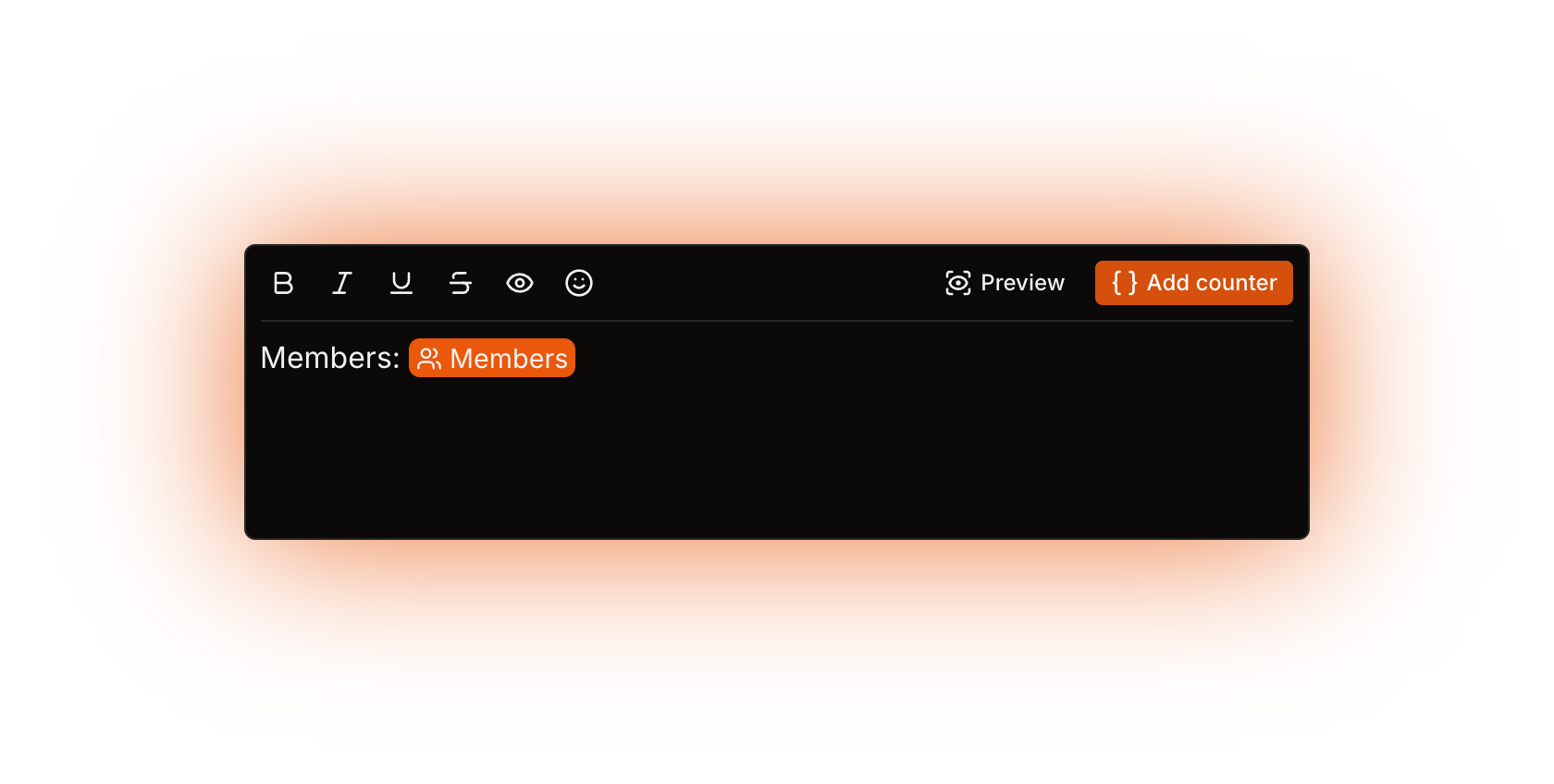
Type `Members:` , press **Add counter**, pick **Members**, and the channel shows `Members:` followed by the count.

<figure><img src="https://1582170640-files.gitbook.io/~/files/v0/b/gitbook-x-prod.appspot.com/o/spaces%2F-Lu2S5r7lKtu4IK5ucu9%2Fuploads%2Fgit-blob-94e9ce5ee410e2d79b31f08a5af3326569b8d16e%2Feditor-toolbar.png?alt=media" alt="The template editor toolbar"><figcaption><p>Formatting marks and the emoji picker on the left, Preview and Add counter on the right</p></figcaption></figure>

## The toolbar

| Control                | What it does                                                                                                                                |
| ---------------------- | ------------------------------------------------------------------------------------------------------------------------------------------- |
| Mark buttons           | Toggle **bold**, **italic**, **underline**, **strike** and **spoiler** on the selected text. Only the marks the channel supports are shown. |
| Emoji button           | Opens the emoji picker.                                                                                                                     |
| **Preview** / **Edit** | Swaps between editing the template and seeing the evaluated result.                                                                         |
| **Add counter**        | Opens the counter list and inserts the one you pick at the cursor.                                                                          |

## Names and topics

Text and announcement channels get their channel topic set, so the editor offers the full Discord grammar. Voice channels and categories get their channel name set, and Discord channel names carry no formatting, so the editor hides it.

| Feature                                                      | Channel topic | Channel name                             |
| ------------------------------------------------------------ | ------------- | ---------------------------------------- |
| Plain text                                                   | Yes           | Yes                                      |
| Counters                                                     | Yes           | Yes                                      |
| **Bold**, **italic**, **underline**, **strike**, **spoiler** | Yes           | No, the buttons are not shown            |
| Role and channel mentions                                    | Yes           | No                                       |
| Unicode emoji                                                | Yes           | Yes, inserted as plain text              |
| Custom server emoji                                          | Yes           | No, the picker only offers Unicode emoji |

Open a channel and the editor is already in the right mode.

## Formatting marks

Select some text and press a mark button, or use the keyboard. On macOS use <kbd>Cmd</kbd> instead of <kbd>Ctrl</kbd>.

| Mark      | Shortcut                       | Saved as       |
| --------- | ------------------------------ | -------------- |
| Bold      | <kbd>Ctrl</kbd> + <kbd>B</kbd> | `**text**`     |
| Italic    | <kbd>Ctrl</kbd> + <kbd>I</kbd> | `*text*`       |
| Underline | <kbd>Ctrl</kbd> + <kbd>U</kbd> | `__text__`     |
| Strike    | <kbd>Ctrl</kbd> + <kbd>S</kbd> | `~~text~~`     |
| Spoiler   | <kbd>Ctrl</kbd> + <kbd>H</kbd> | `\|\|text\|\|` |

{% hint style="warning" %}
A `*`, `_`, `~` or `|` typed into plain, unformatted text is saved exactly as you typed it, so Discord may render the channel topic italic or spoilered when you did not ask for it.
{% endhint %}

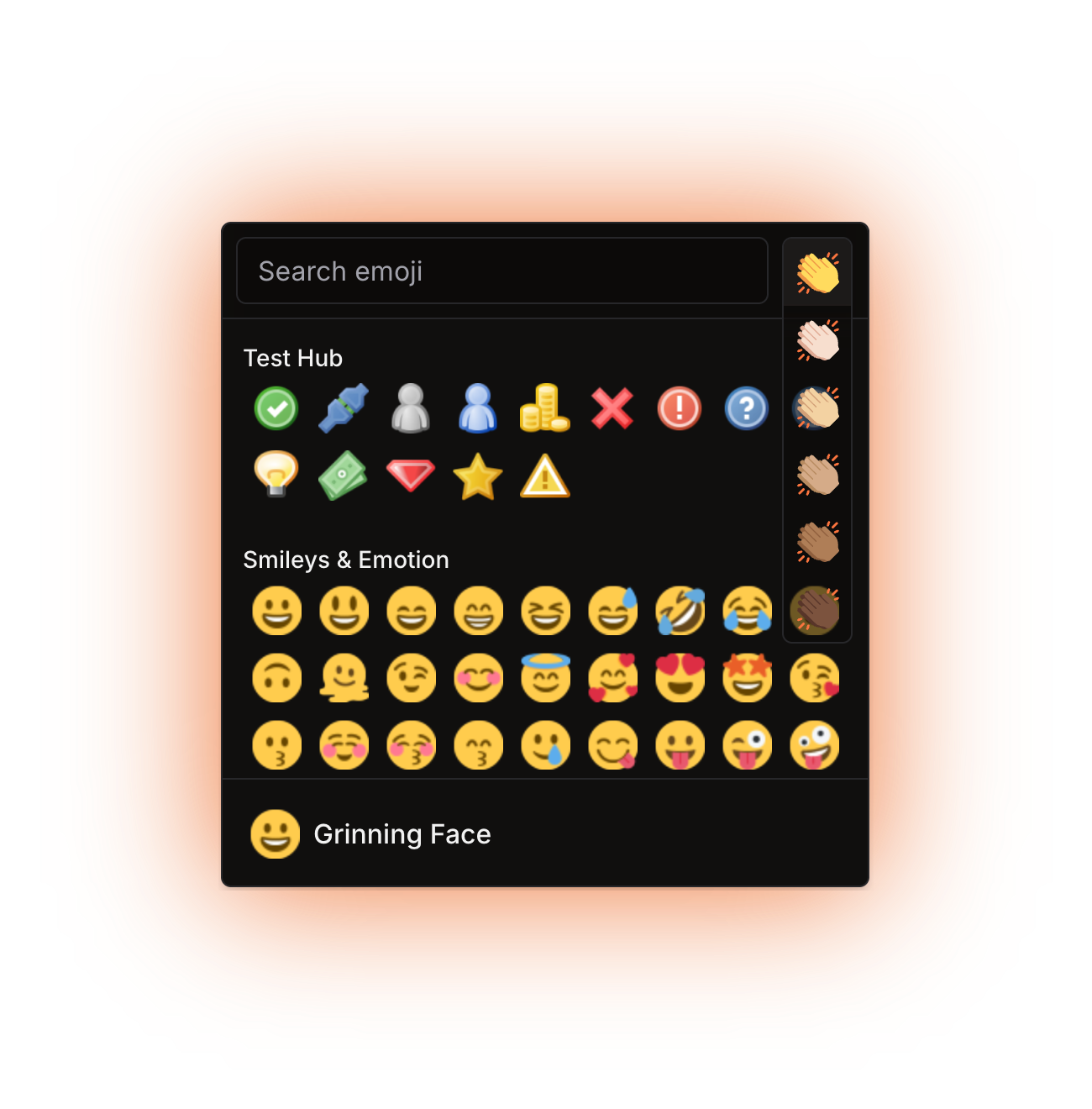
## The emoji picker

The smiley button opens the emoji picker. It offers the custom emojis of every server that both you and the bot are in, not only the one you are editing.

On a channel name template the picker offers no custom emojis and inserts plain text, because Discord does not render custom emojis in channel names.

<figure><img src="https://1582170640-files.gitbook.io/~/files/v0/b/gitbook-x-prod.appspot.com/o/spaces%2F-Lu2S5r7lKtu4IK5ucu9%2Fuploads%2Fgit-blob-5a17dbb76be7d5cd0283ce07f589c984619a62a8%2Feditor-emoji-picker.png?alt=media" alt="The emoji picker"><figcaption><p>Custom server emojis sit above the Unicode groups</p></figcaption></figure>

## Mentions

In a channel topic template, type `@` followed by letters to search roles, or `#` followed by letters to search channels.

| Key                                | Action                       |
| ---------------------------------- | ---------------------------- |
| <kbd>↑</kbd> / <kbd>↓</kbd>        | Move through the suggestions |
| <kbd>Enter</kbd> or <kbd>Tab</kbd> | Insert the selected one      |
| <kbd>Esc</kbd>                     | Dismiss the list             |

## Adding a counter

**Add counter** opens a searchable list of every counter. Search also matches keywords, so `timezone` finds **Clock** and **Date**. Every counter has its own page under [Counters](/counters-reference/counters-list.md).

<figure><img src="https://1582170640-files.gitbook.io/~/files/v0/b/gitbook-x-prod.appspot.com/o/spaces%2F-Lu2S5r7lKtu4IK5ucu9%2Fuploads%2Fgit-blob-3c0c5249a6584a190f8de92add2170c472e6fb18%2Feditor-add-counter-list.png?alt=media" alt="The Add counter list"><figcaption><p>The counter list, searchable by name and by keyword</p></figcaption></figure>

## Counter chips

An inserted counter is not text. It is a chip with a generated name, such as `Members online with roles` or `Clock (Europe/Madrid)`. The name changes as you change the counter's options, so a chip always says what it will return.

* Click a chip, or select it and press <kbd>Enter</kbd> or <kbd>Space</kbd>, to open its edit panel.
* A chip obeys the marks around it, so a bold chip renders bold.
* Copying and pasting a chip makes an independent copy. Editing the copy does not touch the original.

## The edit panel

Clicking a chip opens its options, documented on each counter's page. The panel also carries a collapsible **Format settings** block at the bottom; see [Formatting counters](/using-the-dashboard/customizing-counters.md).

{% hint style="warning" %}
**Format settings** always applies to the outermost counter of the chip, see [Nested counters](/using-the-dashboard/nested-counters.md).
{% endhint %}

### Display label

The tag button in the panel header opens the **Display label** dialog. Type a name there and the chip shows it instead of the generated name. It never changes the channel output, and it helps when several chips would otherwise look the same. Clear the field to get the generated name back.

<figure><img src="https://1582170640-files.gitbook.io/~/files/v0/b/gitbook-x-prod.appspot.com/o/spaces%2F-Lu2S5r7lKtu4IK5ucu9%2Fuploads%2Fgit-blob-5254b9d12a785a9c152d88154b99e810a591f7b2%2Feditor-display-label.png?alt=media" alt="The Display label dialog"><figcaption><p>A display label renames the chip in the editor, never the output</p></figcaption></figure>

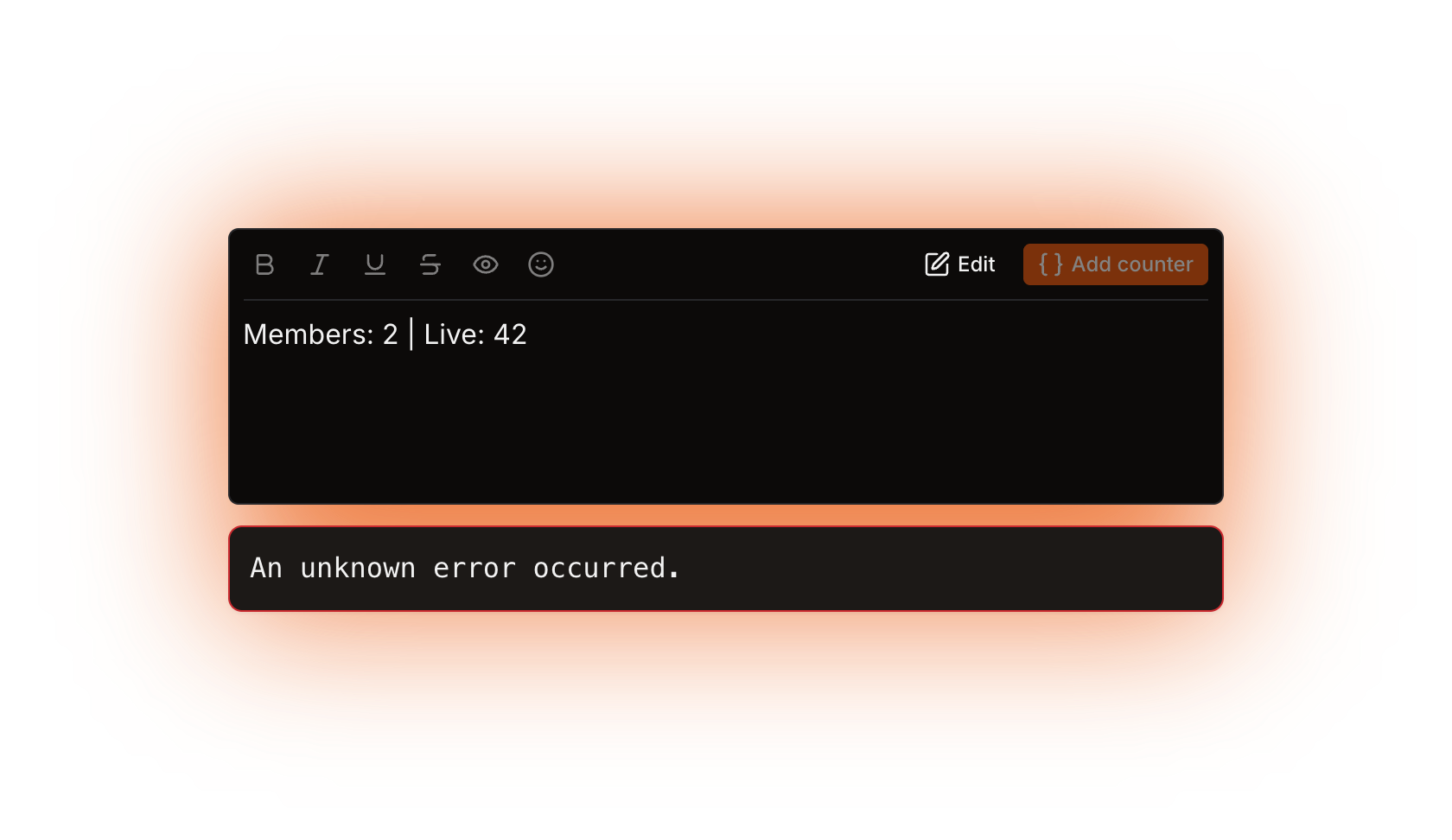
## Preview

**Preview** turns the editor read-only and renders the template as the bot would write it: every chip is replaced with its real value. The dashboard recomputes it about a second after you stop typing, so it lags your edits slightly.

A fatal error renders nothing and shows the error message instead. A non-fatal error still gives you a result, with one message per error below it. The most common is an [HTTP counter](/counters-reference/http.md) that failed and fell back to its fallback value.

Preview is also the only way to check a counter whose format or timezone comes from another counter, because those cannot show a live preview of their own.

<figure><img src="https://1582170640-files.gitbook.io/~/files/v0/b/gitbook-x-prod.appspot.com/o/spaces%2F-Lu2S5r7lKtu4IK5ucu9%2Fuploads%2Fgit-blob-37ae3f5d62c5f401193a2756235539f2d8772ca4%2Feditor-preview.png?alt=media" alt="A template in Preview mode"><figcaption><p>Preview replaces every chip with its real value and lists any errors below</p></figcaption></figure>

## Saving

Press **Save** to store the template. Autosave is off by default and is switched on from [your account](/using-the-dashboard/account.md). The browser warns you if you leave the page with unsaved changes.

{% hint style="info" %}
Saving a template does not update the channel straight away; the bot rewrites channels on a schedule, see [How counters update](/using-the-dashboard/how-counters-update.md).
{% endhint %}

<details>

<summary>Technical details</summary>

* The editor is `apps/frontend/src/app/dashboard/servers/[guildId]/TemplateEditor/`: the grammar sets under `serde/` decide what a channel name (counters only) and a channel topic (marks, emoji, mentions and counters) accept, and `serde/serialize.ts` turns the document into the stored string.
* A saved template is one string: Discord markdown, `<:name:id>` or `<a:name:id>` emojis, `<@&id>` and `<#id>` mentions, and each counter serialised as JSON wrapped in U+001F. That is the invisible character you see in a template copied out of the database.
* A `*` typed as plain text reaches Discord unescaped: the serializer only escapes a delimiter inside text that already carries that mark.
* Preview calls the `bot.computeTemplate` tRPC query, debounced by 1 second. A fatal error is a thrown `KnownError`; a non-fatal one is a counter that used its fallback (`FallbackUsedError`).
* Autosave is a 10 second debounce over the per-user `prefersAutosave` preference.
* The counter list is ordered by the numeric `DataSourceId` enum value, not by name, and search matches each counter's `keywords` string from the locale file. Pasting a chip clones its counter with a fresh ref id.

</details>